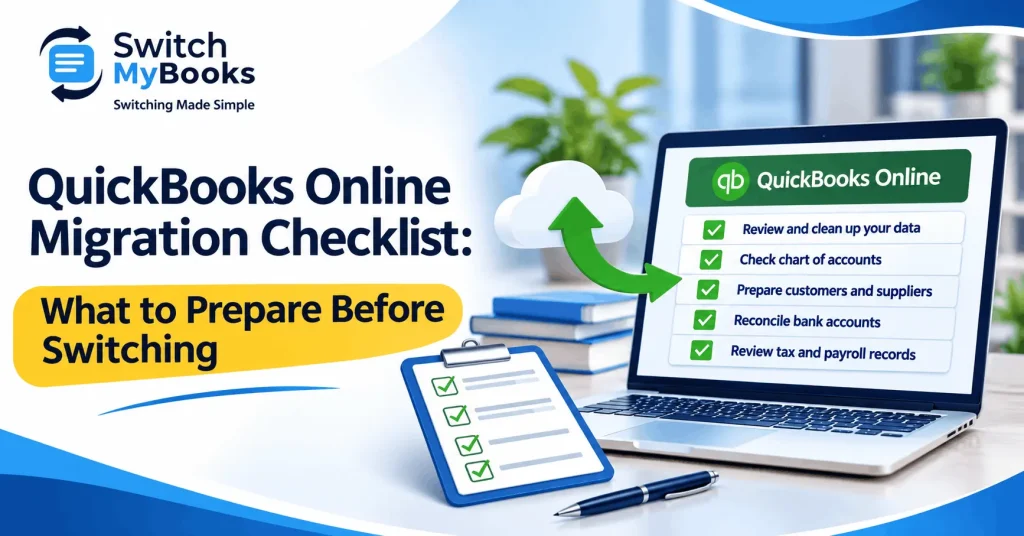
Moving to QuickBooks Online can give your business better access to financial records, easier collaboration with your accountant, and useful tools for managing daily accounts. However, switching accounting software requires more than creating a new account and importing a few files.
Your existing accounting system may contain years of invoices, bills, payments, customer records, tax information, and bank transactions. If these records are not properly prepared, you could face missing transactions, incorrect balances, or unreliable financial reports after migration.
A clear QuickBooks Online migration checklist helps you understand what needs to be done before, during, and after the switch.
Whether you are moving from Sage, Xero, QuickBooks Desktop, or another accounting system, this guide explains how to prepare your financial data, choose the right migration date, and check that your new QuickBooks Online account is ready for business.
Why Planning Your QuickBooks Online Migration Matters
Accounting software migration affects important parts of your business. Your financial reports, customer balances, supplier payments, tax records, and bank accounts all depend on accurate accounting information.
Without proper planning, you may experience problems such as:
- Missing customer invoices or supplier bills
- Incorrect opening balances
- Duplicate transactions
- Unmatched bank balances
- Missing historical accounting records
- Incorrect VAT or sales tax settings
- Differences between financial reports in the old and new systems
These issues can create extra work for your accounting team and delay important financial tasks.
A well-planned migration reduces these risks by helping you identify potential problems before transferring your data.
It also allows you to decide which accounting records should move to QuickBooks Online and which records should remain securely archived in your previous system.
QuickBooks Online Migration Checklist: 12 Essential Steps
Before starting your migration, work through the following checklist. Each step helps protect your financial information and prepare your business for the new accounting system.
Your Migration Preparation Checklist
Interactive
0 of 12 completedResetReview your existing accounting systemChoose a migration dateBack up your financial dataClean up your accounting recordsReview the chart of accountsPrepare customers and suppliersCheck outstanding invoices and billsReconcile bank and credit card accountsReview tax and payroll recordsDecide how much history to transferSet up QuickBooks OnlineValidate migrated data and reports
1. Review Your Existing Accounting System
Start by reviewing the accounting software your business currently uses.
Identify the records stored in your existing system and determine which information you need in QuickBooks Online migration checklist.
Important records may include your chart of accounts, customer details, supplier information, invoices, bills, payments, journal entries, bank transactions, and financial reports.
You should also review any additional features your business currently uses, such as inventory management, project tracking, payroll, or multiple currencies.
Not every accounting platform handles these features in the same way.
For example, a business moving from QuickBooks Desktop may need to review features that are not available or work differently in QuickBooks Online.
Similarly, businesses switching from Sage or Xero should check how their existing account structure and transaction records will fit into QuickBooks Online.
Preparation tip: Create a list of the accounting features your business uses every day. This will help you identify important requirements before the migration begins.
2. Choose the Right Migration Date
Selecting a suitable migration date is one of the most important decisions in the process.
Your migration date determines when your business will stop recording new transactions in the old system and begin using QuickBooks Online.
Many businesses prefer to migrate at the end of a financial month, quarter, or year because these dates can make account reconciliation and reporting easier.
However, you do not always need to wait until the end of your financial year.
The right date depends on your transaction volume, reporting deadlines, tax obligations, and business activities.
Before confirming the date, consider whether your team has enough time to review the transferred data and whether any important financial deadlines are approaching.
Avoid switching during particularly busy accounting periods unless there is a clear business reason.
3. Back Up Your Existing Financial Data
Before transferring any accounting records, create a secure backup of your existing system.
This protects your financial information if you encounter errors or need to review historical transactions after migration.
Your backup should include relevant accounting records and supporting documents.
Depending on your current software, you may need to export:
- Trial balance and general ledger reports
- Profit and loss statements and balance sheets
- Customer and supplier lists
- Outstanding invoices and bills
- Bank reconciliation reports
- Tax reports and transaction history
- Supporting documents and attachments
Where possible, retain both system backups and readable exports such as CSV, Excel, or PDF files.
Store these files securely and limit access to authorised team members.
Remember that a CSV export is not always a complete backup of your accounting system. Some information, including attachments, settings, or audit records, may require separate exports.
4. Clean Up Your Accounting Records
Moving inaccurate accounting data into a new system will not automatically correct existing problems.
Before migration, review your financial records and resolve errors where possible.
Look for duplicate customers, unused supplier accounts, incorrect account classifications, unreconciled transactions, and outstanding balances that no longer reflect actual amounts owed.
You should also review any old suspense accounts, unexpected negative balances, and transactions posted to the wrong accounting periods.
If your business has several years of accounting history, you may need a more detailed review.
Cleaning up your records before migration makes it easier to compare financial reports and identify genuine migration errors.
Preparation tip: Save a final set of financial reports after completing your cleanup. These reports will provide a reference when checking your QuickBooks Online data.
5. Review and Organise Your Chart of Accounts
Your chart of accounts is the list of categories used to record your business income, expenses, assets, liabilities, and equity.
Before migration, review this list carefully.
Check for duplicate accounts, unclear account names, unused categories, and accounts that may need to be combined.
You should also confirm that account types are suitable for QuickBooks Online.
For example, an account classified incorrectly as an expense rather than an asset could affect the way transactions appear in your financial reports.
Avoid deleting accounts simply because they are no longer in use. Historical transactions may still depend on them.
Instead, decide how each account should be mapped to QuickBooks Online.
This helps maintain consistent financial reporting after the switch.
6. Prepare Customer and Supplier Information
Customer and supplier records are important parts of your accounting data.
Before importing them into QuickBooks Online, review your contact lists for duplicate entries, missing information, and outdated records.
Check important details such as names, addresses, email addresses, payment terms, tax information, and outstanding balances.
If the same customer appears under several different names, decide whether those records should be combined.
However, do not merge contacts without checking their transaction history. Different records may represent separate legal entities or accounts.
Accurate contact information helps prevent problems when creating invoices, processing payments, and managing outstanding balances in QuickBooks Online.
7. Review Outstanding Invoices and Bills
Unpaid customer invoices and supplier bills need particular attention during migration.
These records determine how much money customers owe your business and how much your business owes suppliers.
Before switching, generate an aged receivables report and an aged payables report from your existing accounting system.
Review both reports carefully.
Confirm that outstanding amounts are correct and that payments, credit notes, and adjustments have been recorded properly.
You should also identify partially paid invoices, supplier credits, and disputed balances.
After migration, compare the outstanding invoices and bills in QuickBooks Online with your final reports from the previous system.
If these balances do not match, investigate the differences before relying on the new system.
8. Reconcile Bank and Credit Card Accounts
Bank reconciliation is another essential part of your QuickBooks Online migration checklist.
Before switching, reconcile your bank and credit card accounts up to the agreed migration date wherever possible.
Compare the balances in your accounting system with the relevant bank statements.
Identify outstanding payments, deposits in transit, duplicate entries, and transactions that have not yet cleared the bank.
Keep copies of your final reconciliation reports.
Once your data has been transferred, check that the opening bank balances in QuickBooks Online agree with the agreed closing balances in the previous system.
You will also need to connect or reconnect your bank feeds where supported.
Be careful when importing bank transactions because overlapping date ranges can create duplicates.
9. Review VAT, Sales Tax, and Payroll Records
Tax and payroll information must be handled carefully during accounting software migration.
The requirements depend on your country, business structure, and the software you currently use.
For UK businesses, review VAT balances, filing periods, tax codes, and any outstanding VAT returns.
For businesses in other countries, check the relevant GST, HST, or sales tax requirements.
You should also confirm how your existing tax codes will be handled in QuickBooks Online.
Some tax settings may need to be configured again rather than transferred directly.
Payroll requires separate attention.
Employee records, payroll history, tax deductions, and payroll liabilities may not transfer through a standard accounting migration.
If you use payroll software or an external payroll provider, confirm how these records will be managed after the switch.
You can review the available features and regional requirements through the official QuickBooks website.
10. Decide How Much Historical Data to Transfer
Not every business needs to migrate its entire accounting history.
Some businesses only require opening balances, customer and supplier records, and outstanding invoices and bills.
Others need several years of detailed transactions for financial reporting, audits, or business analysis.
The right approach depends on your requirements and the capabilities of your existing accounting system.
There are three common approaches:
Opening balances migration: Transfer agreed balances at a selected date, together with any required outstanding transactions and contact records.
Partial historical migration: Transfer a defined period of transaction history, such as the current financial year or several recent years.
Full historical migration: Transfer the agreed available historical records, subject to data quality, system limitations, and migration method.
Each approach has different implications for cost, timescale, and reporting.
A full historical migration may require additional checks to confirm that transactions, payments, and account balances have been transferred correctly.
If your business needs historical reporting in QuickBooks Online, discuss this requirement before the migration begins.
11. Set Up Your QuickBooks Online Account
Before importing your financial data, make sure your QuickBooks Online account is configured correctly.
Check your company name, business address, financial year settings, reporting currency, and tax registration information.
You should also review user permissions and decide which employees or external accountants need access.
Other settings may include invoice templates, payment terms, products and services, tax codes, and bank connections.
If your business uses multiple currencies, confirm that the relevant QuickBooks Online plan supports your requirements and that multicurrency settings are configured appropriately.
Some settings may be difficult or impossible to change after they have been activated or used.
It is therefore important to review the setup before importing large amounts of data.
12. Validate Your Migrated Data and Financial Reports
The migration is not complete simply because the data has been imported.
You must confirm that the transferred records are accurate and that QuickBooks Online produces reliable financial reports.
Start by comparing the trial balance in QuickBooks Online with the final trial balance from your previous system at the agreed comparison date.
Then review your balance sheet, profit and loss statement, aged receivables, aged payables, and bank balances.
Check whether customer and supplier balances match and whether the agreed historical transactions are present.
You should also test important daily activities, such as creating invoices, recording supplier bills, receiving customer payments, and reconciling bank transactions.
Any differences should be investigated and documented.
A successful migration should leave your business with accounting records that are accurate, usable, and ready for ongoing financial management.
What Data Can Be Migrated to QuickBooks Online?
The information you can transfer depends on your current accounting software, the migration method, and the quality of your records.
The table below provides a general overview.
| Accounting Data | Migration Considerations |
|---|---|
| Chart of accounts | Usually transferable with account mapping |
| Customers and suppliers | Generally transferable after data review |
| Opening balances | Can be entered or imported using an appropriate method |
| Outstanding invoices | Often transferable, depending on source data |
| Outstanding bills | Often transferable, depending on source data |
| Historical transactions | Depends on the migration tool and agreed scope |
| Payments and credit notes | May require specialist migration or matching |
| Bank transactions | Can often be imported, with reconciliation checks |
| Attachments | May require a separate process |
| Payroll history | Often requires separate handling |
| User permissions | Usually need to be configured again |
| Bank feed connections | Generally need to be connected again |
Important: Data availability does not guarantee that every record can be imported directly using QuickBooks Online’s built-in tools. Complex migrations may require specialist software or additional manual work.
Common QuickBooks Online Migration Mistakes to Avoid
Even businesses with experienced accounting teams can encounter problems when switching systems.
Understanding the most common mistakes can help you prepare more effectively.
Migrating Without Reconciling Accounts
If bank balances, customer accounts, or supplier balances are already incorrect, transferring them can make it harder to identify the original problem.
Complete the necessary reconciliation work before migration and keep supporting reports.
Importing Duplicate Transactions
Duplicate records can occur when data is imported more than once or when bank feeds overlap with previously imported transactions.
Check import dates and transaction references carefully.
Ignoring Historical Reporting Requirements
Some businesses discover after migration that they need historical transaction details that were not included in the original transfer.
Confirm your reporting requirements before deciding how much data to migrate.
Overlooking Attachments and Supporting Documents
Invoices, receipts, and other documents may not move automatically with their related transactions.
Identify which attachments are essential and confirm how they will be preserved or transferred.
Failing to Test the New System
Your team should not begin relying on QuickBooks Online until important balances and business processes have been checked.
Testing helps identify problems before they affect daily accounting activities.
How Long Does a QuickBooks Online Migration Take?
The time required depends on the size and complexity of your accounting records.
A small business transferring opening balances and a limited number of contacts may need considerably less time than a company moving several years of detailed transaction history.
Factors affecting the migration timeline include the volume of transactions, number of bank accounts, quality of existing data, amount of historical information, and complexity of the accounting setup.
Businesses using multiple currencies, inventory systems, or third-party applications may also need additional preparation and testing.
You should allow time for data review, migration, reconciliation, and staff training.
Rather than selecting a completion date based only on the import process, plan for the entire transition.
Should You Migrate to QuickBooks Online Yourself or Hire a Specialist?
Some businesses can complete a basic migration themselves using available import tools.
This may be suitable when the accounting records are relatively simple and only a limited amount of information needs to be transferred.
However, more complex migrations can require specialist knowledge.
Professional support may be useful when your business has several years of accounting history, multiple bank accounts, foreign currency transactions, large customer and supplier balances, or complex tax records.
A migration specialist can help review your existing records, agree on the transfer scope, map accounts, and compare financial reports after migration.
This can be particularly valuable when accurate historical reporting is essential.
For businesses planning a move, Switch My Books provides QuickBooks Online migration services to help prepare, transfer, and check accounting records.
What to Do After Switching to QuickBooks Online
Once your migration has been completed and the financial records have been checked, your business should focus on establishing reliable accounting processes.
Start by confirming that staff members understand how to use the new system.
Review user permissions and make sure employees have access only to the information and functions they need.
Connect supported bank feeds, configure invoice settings, and check any applications that need to exchange information with QuickBooks Online.
You should also establish a regular bank reconciliation process and review financial reports during the first accounting period after migration.
Keep secure access to your previous accounting records for the required retention period.
Do not cancel your old software subscription until you have confirmed that all necessary information has been transferred or securely retained and that any required records remain accessible.
If you are still comparing your accounting software options, explore the accounting software migration services offered by Switch My Books.
Final Thoughts
Moving to QuickBooks Online can improve how your business manages financial information, but the quality of the migration depends on proper preparation.
Following a structured QuickBooks Online migration checklist helps you identify the records you need, resolve existing accounting issues, and reduce the risk of errors.
From choosing a migration date and reviewing outstanding invoices to reconciling bank accounts and checking financial reports, every step plays an important role.
The goal is not simply to transfer data. It is to make sure your business can continue managing its accounts accurately in QuickBooks Online.
Ready to Switch to QuickBooks Online? Let Us Help
Preparing for a QuickBooks Online migration can take time, especially when your business has years of financial records, unpaid invoices, or complex accounting requirements.
At Switch My Books, we help businesses move their accounting data to QuickBooks Online. Our team can review your existing records, plan the migration, transfer the agreed data, and check the results against your previous system.
Whether you are switching from Sage, Xero, QuickBooks Desktop, or another accounting platform, we can help you understand what needs to be transferred and how to prepare.
Talk to our migration specialists to get a quote for your QuickBooks Online migration.Get a QuickBooks Online Migration Quote
Is this conversation helpful so far?